
Most AI research still ends with you doing the research. You ask for the best train from Brussels to Frankfurt, you get eight links and a tidy summary, and then you open all eight links yourself, compare departure times yourself, and close the six you didn't need. The model did the reading. You did the work.
A computer use agent removes that handoff. Instead of handing back links, it drives a real browser — clicks, scrolls, dismisses the cookie banner, filters by your constraints — and leaves the finished tabs open in front of you. You arrive at a decision rather than at homework. That's a smaller-sounding change than "AI books your travel," and it's the one that actually shows up in your day.
I put this to work on a morning where I had four hours before a flight and a trip I hadn't planned. Below: what browser-driving agents are genuinely good at, the two tasks I ran through one, where they still fall over, and how to point one at your own work.
What you'll get out of this
- The difference between an in-app browser and true computer use — and why they fail differently
- The two prompts I used to run travel research and trip planning in parallel
- Why watching the agent browse matters more than getting a slightly better answer
- The tab-hoarding fix nobody mentions: delegating the decision to close
- A five-step way to put a browser agent on a task worth delegating
What a computer use agent actually is
Two capabilities get lumped under the same headline, and they are not the same thing.
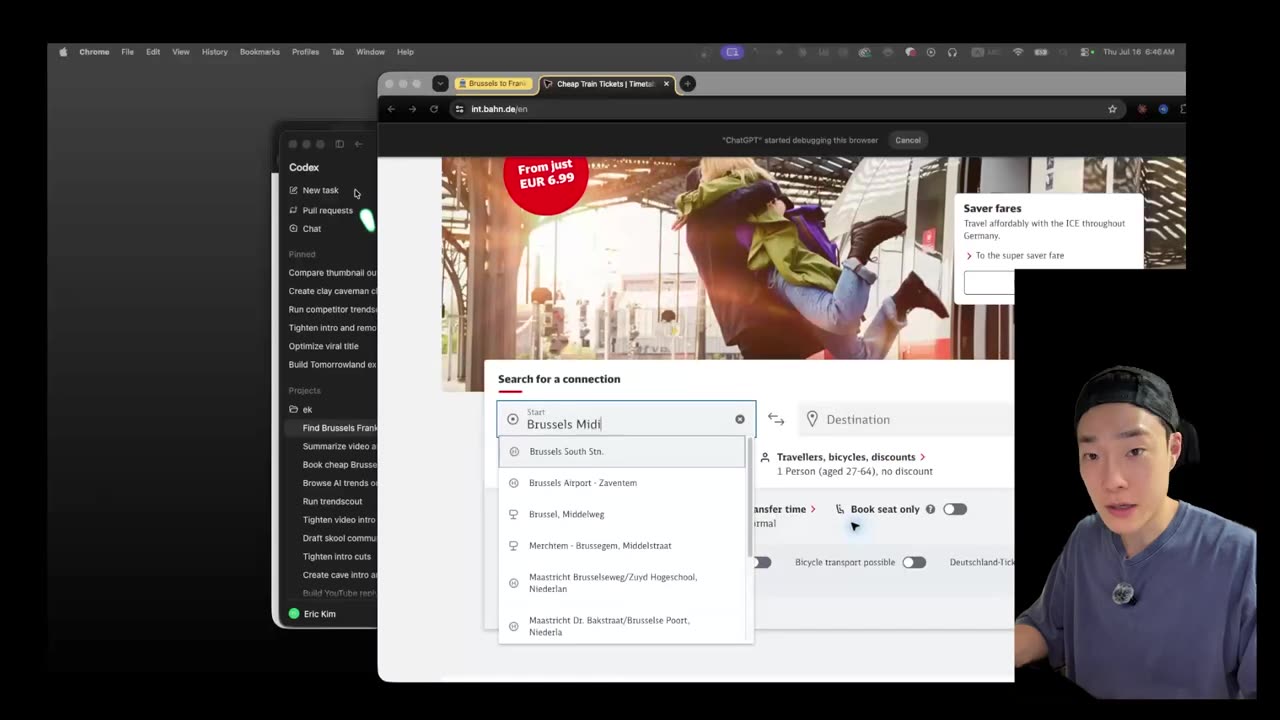
The first is an in-app browser. Your agent app opens real Chrome tabs that live inside its own window — in Codex it's a Ctrl + T away, and you can have as many as you want. The pages sit next to the conversation, so when the agent finds the right one you take it over without switching apps.
The second is computer use: the agent drives the machine itself, moving the mouse and typing into whatever window is in front of it. The important detail is that it can do this in the background. Earlier versions of this idea took your mouse hostage — you sat and watched because you physically couldn't do anything else. Now the browser runs off to one side while you keep working.
Why link-dump research agents make more work, not less
The failure mode of ordinary research agents is easy to miss because the output looks great. You get a clean summary with sources. It reads like a finished job.
The worst part of delegating research is that when it spits out the result, you're the one who has to follow whatever it gave you and do a second round of research yourself.
That second round is the whole cost. The agent's answer is a list of candidates, and candidates need verification: is that price current, does that time actually work, is that restaurant open on a Tuesday. So you re-browse everything it already browsed, which means the delegation saved you the reading and gave you back the clicking.
A browser agent inverts it. The tabs it opened are the deliverable. You're not chasing links; you're reviewing an intern's desk after they've laid everything out for you to sign.
Two real browser tasks, start to finish
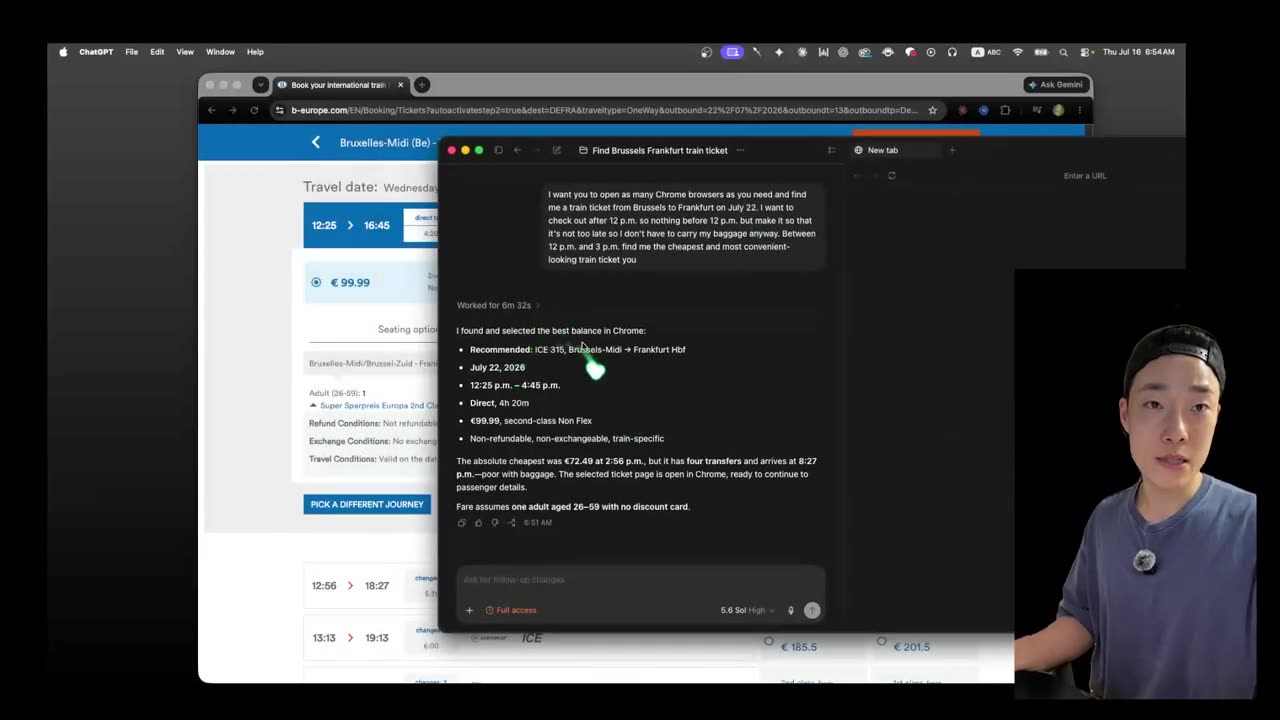
The first was a train. I needed to get from Brussels to Frankfurt on July 22nd, in the early afternoon, and I did not have the hour it usually takes to compare operators.
# prompt 1 — the train
Open as many Chrome browsers as you need and find me a
train ticket from Brussels to Frankfurt on July 22nd.
Early afternoon, and make it so it's not too late.
Find me the cheapest and most convenient one.
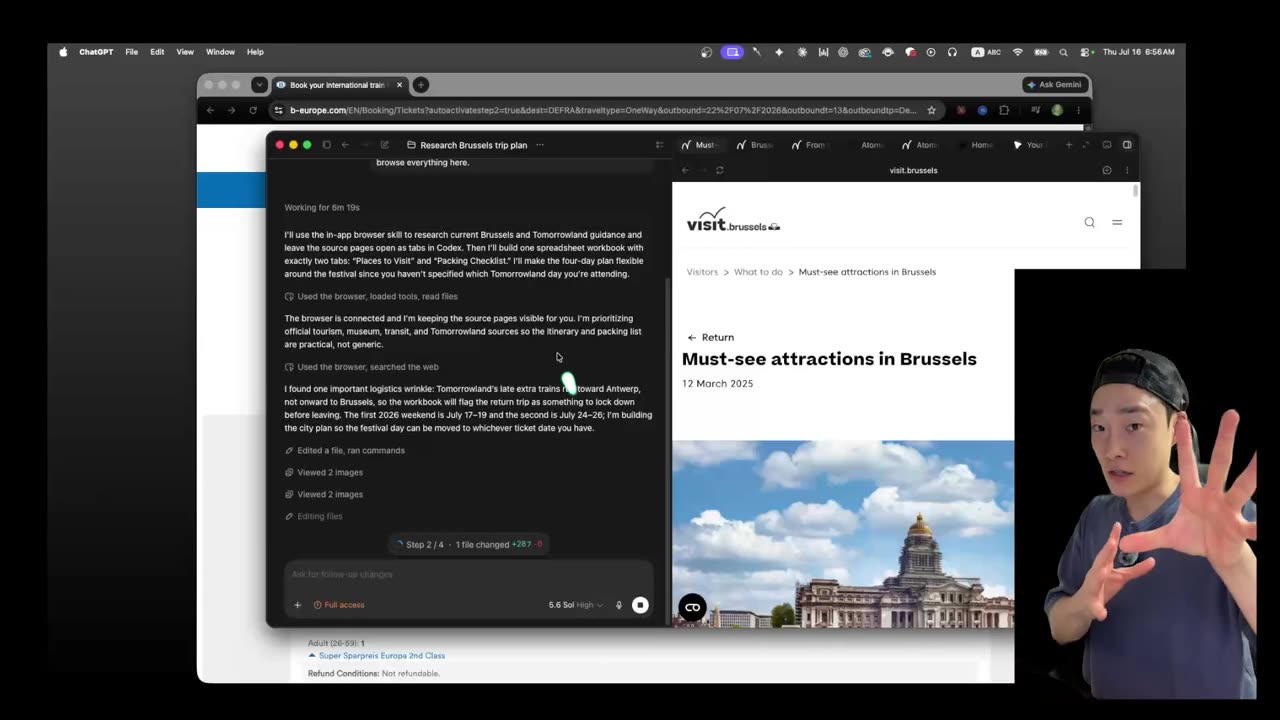
Then I did the thing you can only do when the work is genuinely running elsewhere: I fired off a second job while the first was still going.
# prompt 2 — sent while prompt 1 was still browsing
Research the places I must visit during my 4-day stay in
Brussels. Open as many browser tabs as you need.
Organize it in a spreadsheet, ordered by importance.
In another tab, organize what I need to prepare for packing.
Open all the tabs inside Codex so I can check the sources.
Note what those prompts have in common.
- Both carry hard constraints — a date, a time window, a tie-breaker, a trip length.
- Both explicitly authorize tab sprawl.
- And both ask for an artifact: a spreadsheet, a packing list, open sources.
None of them ask for a summary, because a summary is the thing I'd have to redo.
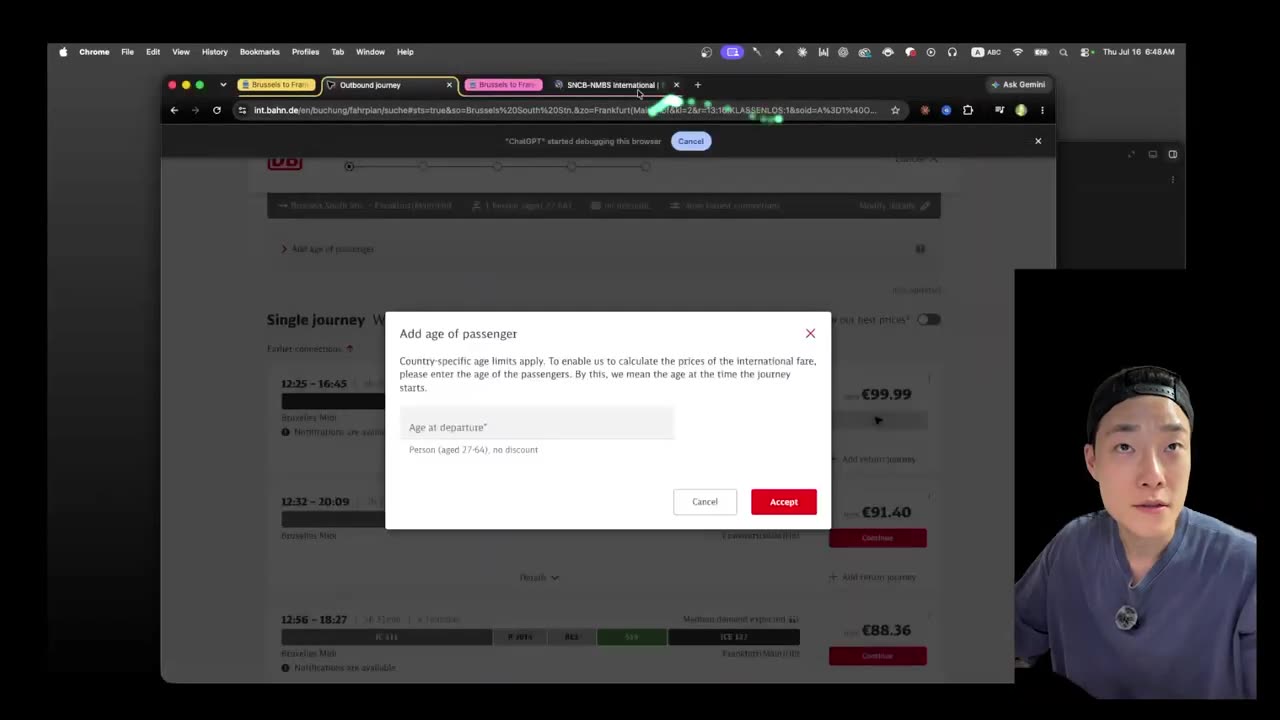
The train came back with what I'd have picked myself: the best balance of price and timing, sitting on screen ready to book. I didn't verify it by re-searching, which is the part that surprised me. I'd watched enough of the search to know it had covered the ground.
Why watching the agent browse beats a better answer
The thing I didn't expect to care about was the window itself.
Every research agent before this was a black box. You send a prompt, you wait, you get prose, and you have no idea whether it checked four sources or forty. So you distrust it, so you verify, so you're back to doing the work. The trust problem isn't solved by a better model — it's solved by being able to see the process.
Because computer use runs in the background, you can park the browser in the corner of a second monitor and glance at it while you do something else. You see which sites it opened, which results it scrolled past, what it filtered on. It's the Uber map principle: the ride isn't faster because you can watch the car move, but the waiting stops being anxious.
The tab problem, and the fix nobody talks about
Here's the least glamorous win and possibly the most useful one.
My chronic browser state is 30-plus open tabs I can't bring myself to close. The reason isn't laziness, it's a cost calculation: closing a tab risks spending ten minutes later finding it again. So every tab stays, forever, and the browser becomes a graveyard of undecided research.
A browser agent can own that decision. Once the tabs belong to the agent, you can just say what you want kept — close everything about souvenirs, keep restaurants, reopen the ones I'll actually use — and it prunes and re-opens. The judgement about whether a tab is still needed stops being yours. That was the last manual chore hiding inside "AI did my research."
This is the same instinct behind every dashboard I've built: keep the work and the context in one surface so you stop paying the switching tax. It's why I moved my whole operating system into a Claude Code second brain and later into a single command center. Browser agents finish that job by dragging the last stubborn app — Chrome — inside the tent.
Where browser agents break
Four honest limits, because the demos never mention them.
Cookie banners and consent walls eat real time. Every site puts one in the way, and the agent has to deal with each one before it can read anything. Expect the run to be slower than you doing it — the win is that you're not the one sitting there.
The last click stays yours. Payment, passwords, anything irreversible. A good run ends with the agent having narrowed sixty options to one and left it on screen; you sign. If your workflow requires the agent to spend money unsupervised, you don't have a workflow, you have a liability.
It is not faster on small jobs. One tab, one lookup — do it yourself, you'll be done before the browser finishes launching. The maths flips somewhere around the fifth tab, where the tedium compounds and your attention is the scarce resource.
Background work is still work you're paying for. An agent clicking through sites for twenty minutes is burning tokens the entire time, and "let it run, I'm not watching" is exactly how bills get surprising. I've written up what an always-on agent actually costs per day and how to cut the waste out of an agent loop — read one of them before you set anything running on a schedule.
How to put a browser agent on your own workflow
-
Pick a browse-heavy, decision-light task
The candidates are jobs where the reading is enormous and the judgement is one line: comparison shopping, travel options, checking twenty listings against three constraints, collecting sources for a piece. If it fits in one tab, it isn't a candidate.
-
Put the constraints in the prompt, not in your head
Date, time window, budget, tie-breaker. "Cheapest and most convenient" is doing enormous work in my train prompt — it tells the agent how to resolve a tie, which is the only reason it could return one answer instead of a shortlist.
-
Ask for tabs and an artifact, never a summary
Say "open as many browser tabs as you need" and name the output: a spreadsheet, a workbook, a packing list, ordered by something. An artifact you can act on is the difference between delegation and a very expensive search engine.
-
Park the browser where you can see it, then ignore it
Second monitor, or a corner of the screen. Fire the next prompt while the first is running — the whole point of background execution is that your hands stay free. Glance over occasionally to keep the trust calibrated.
-
Keep the last click, and hand back the tab cleanup
Review the pick, do the payment yourself, then tell the agent which tabs to kill. Ending the session with a clean browser is what makes you willing to start the next one.
Automate the thing that genuinely needed automating, not the thing that was easy to automate. Manual browsing — thirty tabs, second-round verification, the fear of closing anything — was always in the first category. It just didn't have a tool until an agent could hold the mouse.
Watching it happen is the part that sells it
Six minutes: two prompts running at once, a browser opening tabs it wasn't explicitly told to open, and a train ticket I booked without double-checking. Then come argue about what you'd delegate first.
Frequently asked questions
What is a computer use agent?
A computer use agent is an AI agent that controls a real computer the way a person does: it moves the mouse, types, clicks links, dismisses cookie banners and reads what is on screen. Instead of returning text about a website, it operates the website. You watch the window while it works and step in whenever you want.
What is the difference between an in-app browser tool and computer use?
An in-app browser opens tabs inside the agent's own window, so the pages live next to your chat and you can take one over instantly. Computer use drives the operating system itself, including apps the agent has no integration with. In-app browsing is faster and tidier; computer use handles anything, including the awkward pages.
Can a computer use agent book a flight or pay for something?
Let it research and open the checkout page, then do the payment yourself. When I searched for a train from Brussels to Frankfurt, the agent found the cheapest convenient option and left it on screen, and I clicked the buy button. Card details, passwords and anything irreversible should stay on your side of the line.
Do I have to watch the agent while it browses?
No, and that is the point. The browser window runs in the background, so you can park it on a second monitor and keep working while it filters results. Glancing at it occasionally is still worth it: seeing which sites it opened is what tells you whether the answer is trustworthy or a guess.
What kinds of tasks are worth handing to a browser agent?
Anything browse-heavy and decision-light: comparison shopping, travel options, gathering sources into a spreadsheet, checking twenty listings against three constraints. If a job takes one tab, do it yourself. The agent starts paying for itself around the fifth tab, where the tedium is real and the judgement call is still yours.
Tools named here: OpenAI Codex for the browser and computer use runs, and Claude Code for the dashboards I keep everything else in. More build logs on the home page.